How to install an eSIM
It takes two minutes. Install the eSIM at home on wifi before you fly. It only activates once you connect to a network in your destination.
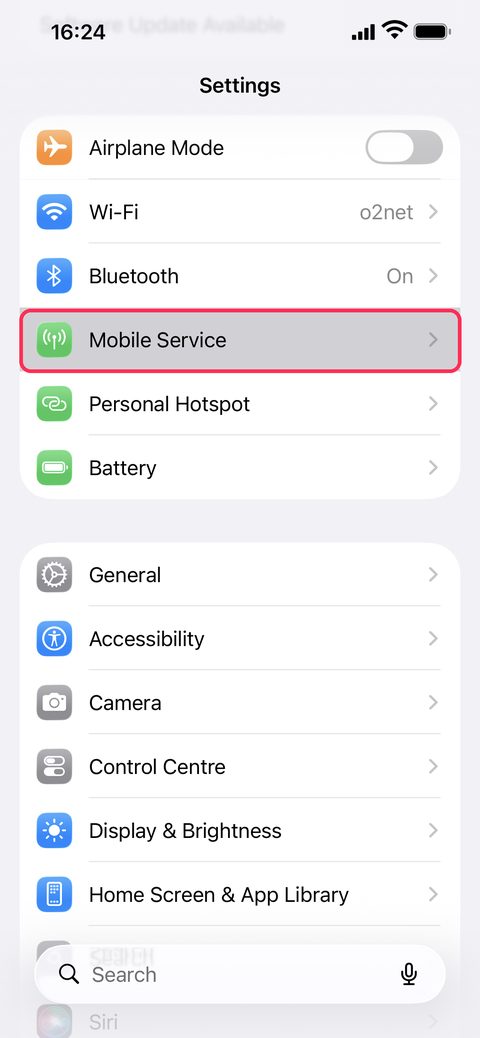
Open Settings → Mobile Service
In Settings tap Mobile Service. On older iOS versions it is called “Mobile Data”.
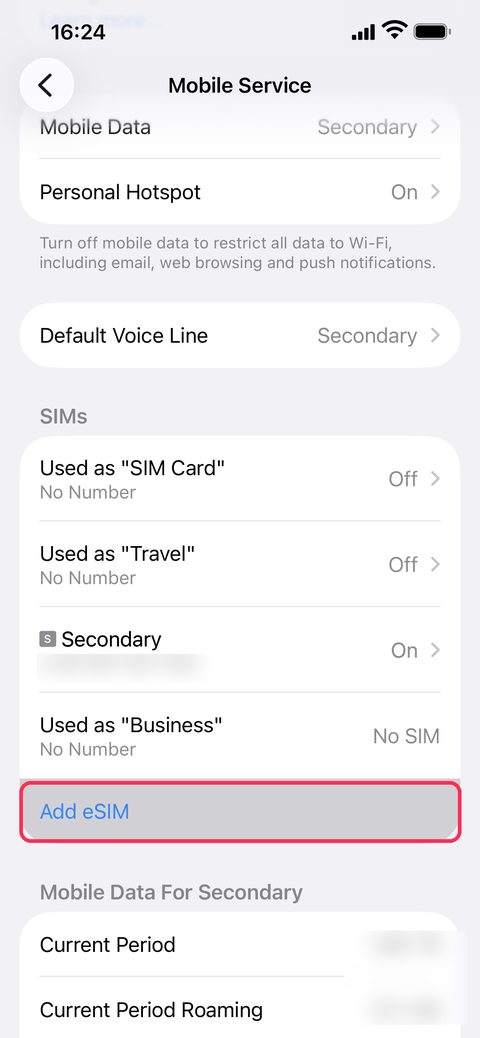
Tap Add eSIM
Scroll down the list. Below your SIMs you will find Add eSIM. Keep your main SIM on, you will still use it for calls and SMS.
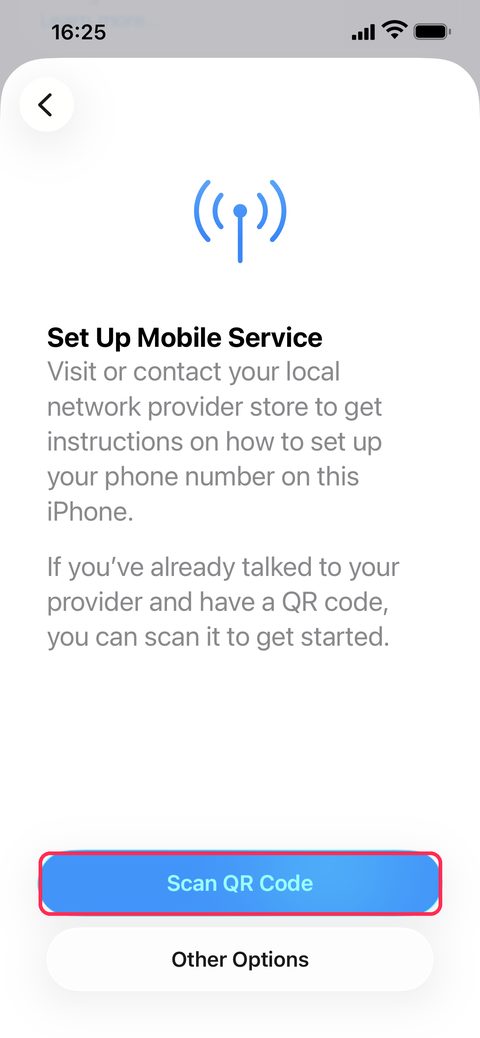
Tap Scan QR Code
On the Set Up Mobile Service screen choose Scan QR Code. Do not pick Other Options.
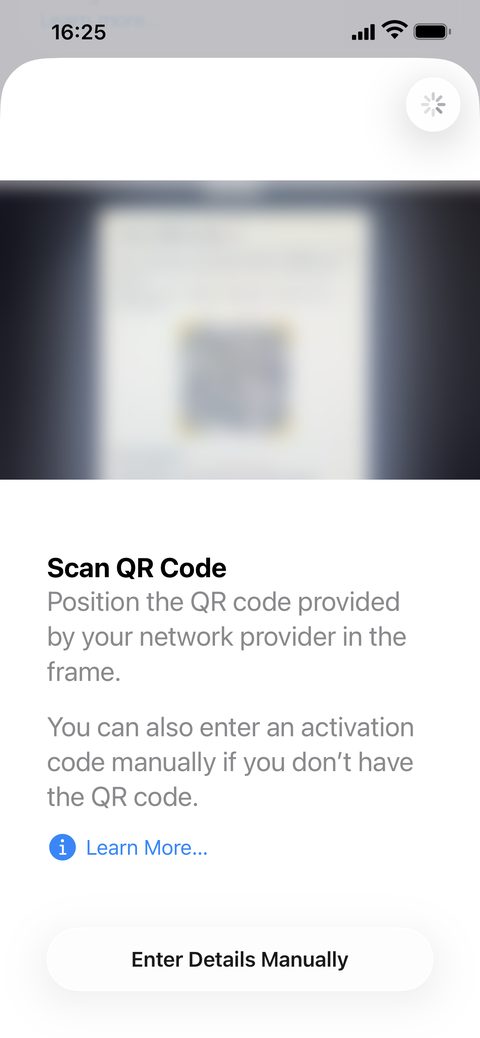
Point the camera at the QR code from the e-mail
Scan the QR code from our e-mail. If you read the e-mail on the same phone, choose Enter Details Manually and type the SM-DP+ address and activation code.
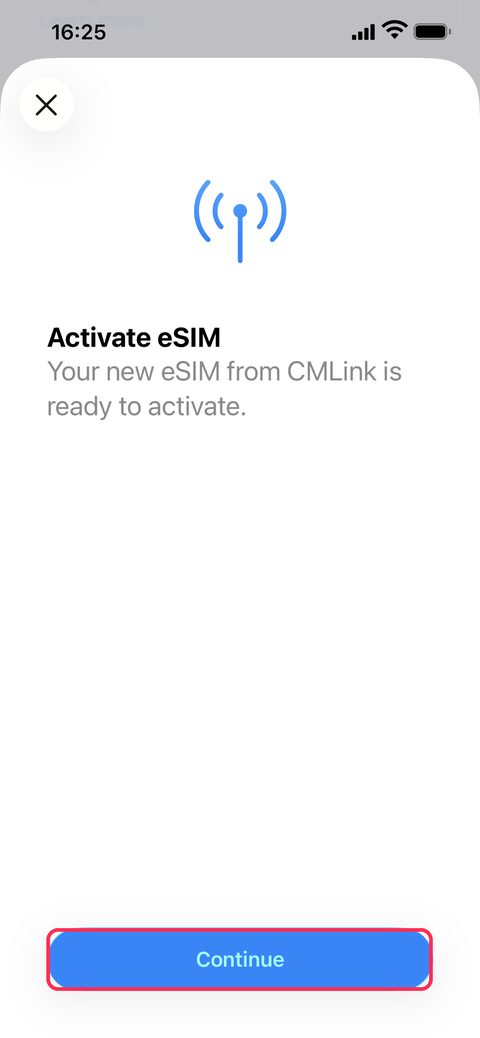
Confirm activation
Tap Continue and wait a few seconds while the eSIM activates. Stay connected to wifi.
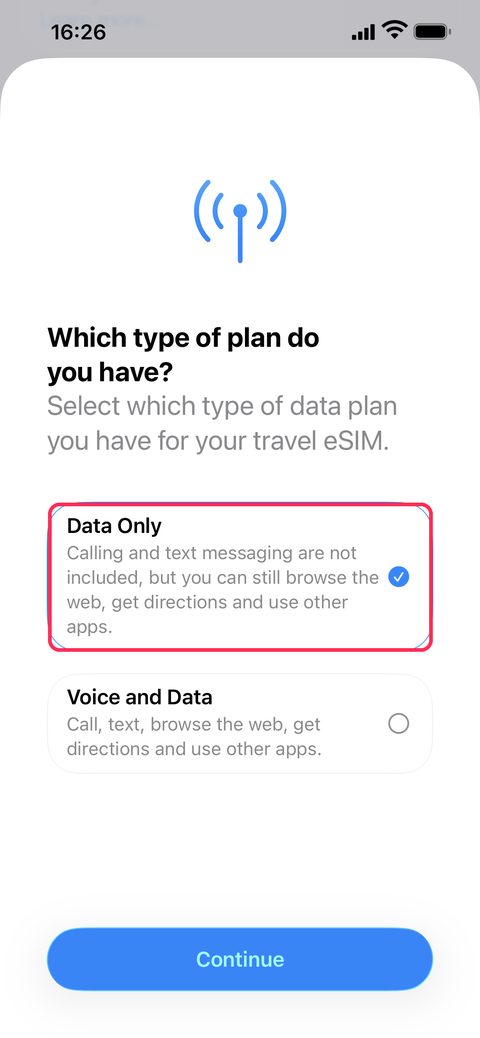
Choose plan type: Data Only
Select Data Only and tap Continue. Our eSIMs are data only, with no phone number. Calls and SMS keep working on your main SIM.
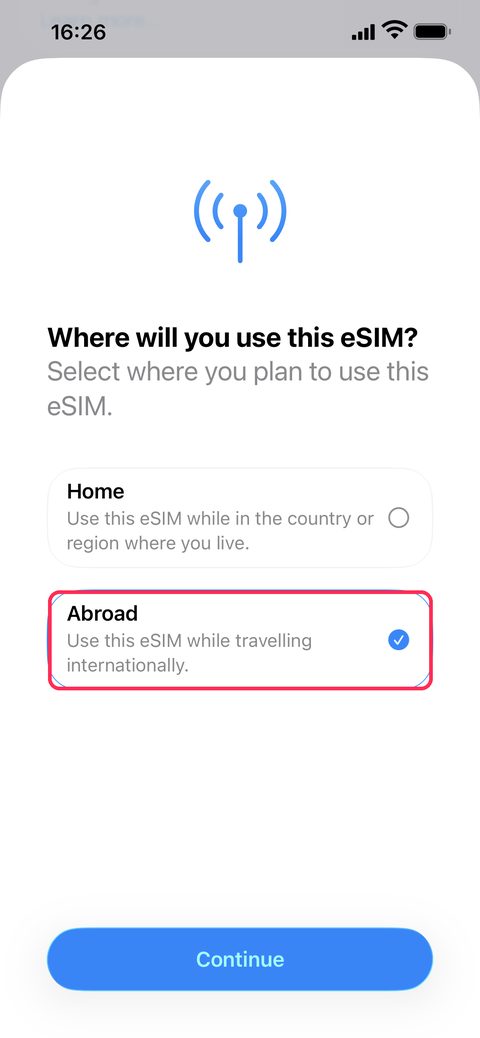
Select Abroad
Choose Abroad and tap Continue. After landing, your iPhone will remind you to turn the eSIM on.
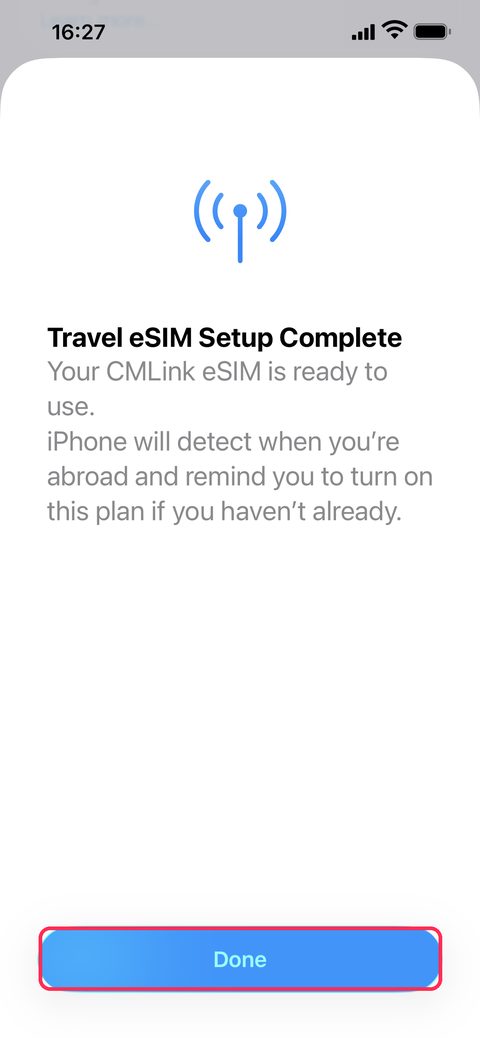
Finish the setup
Tap Done. The eSIM is ready, you turn it on after landing.
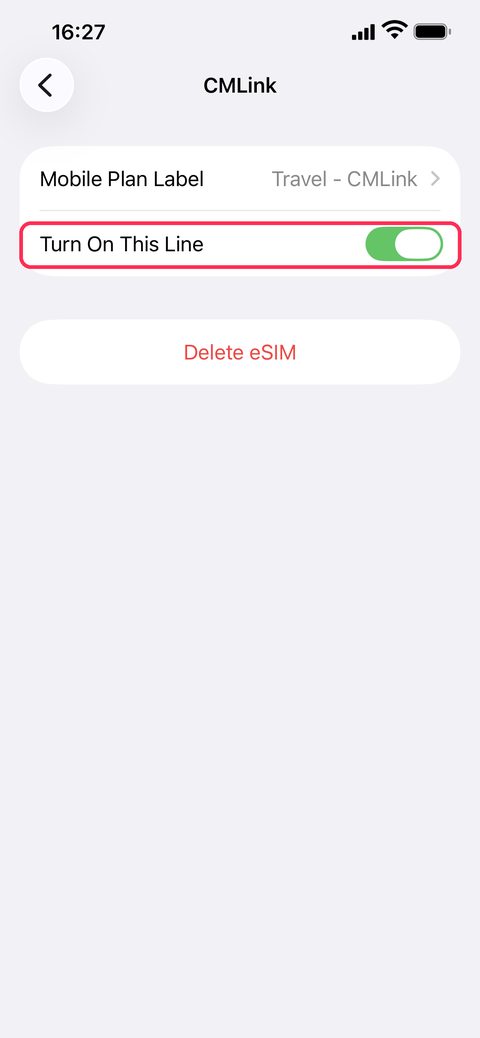
After landing, turn on the line and roaming
In Mobile Service tap the new eSIM and switch on Turn On This Line. Then enable Data Roaming and select this eSIM under Mobile Data.
Open Settings → SIMs
Open Settings → SIMs
Depending on the manufacturer: “Connections” → “SIM manager”, or “Network & internet” → “SIMs”.
Tap Add eSIM
Tap Add eSIM
It may be called “Download a SIM” or “Add mobile plan”.
Scan the QR code
Scan the QR code
Scan the QR code from your e-mail shown on another device, or enter the details manually.
Confirm the download
Confirm the download
The phone downloads the eSIM and offers to turn it on. Turn it on after you land.
Set mobile data to the eSIM
Set mobile data to the eSIM
After landing, choose the eSIM for mobile data and turn on data roaming for it. Switch mobile data off on your main SIM.
What you need
• A phone that supports eSIM and is not locked to a carrier.
• A wifi connection.
• The QR code from your e-mail shown on another device (or the manual details from the e-mail).
After you land
Turn on the eSIM for mobile data and enable data roaming for it. Keep your main SIM for calls and texts and switch its mobile data off so you are not charged roaming.
If something does not work
• Make sure data roaming is on for the eSIM.
• Restart your phone or switch airplane mode on for 10 seconds.
• Select the network manually in the eSIM settings if it does not connect automatically.
• The QR code can only be used once. Do not delete the eSIM from your phone before the trip is over.
• Still nothing? Write to us at info@sbaldata.cz